Emoji Search Tips: Find the Right Emoji Fast on Any Device

The quickest way to find an emoji is to search by what it is called or what it means, not by how it looks. Open your keyboard’s emoji search field (or press Windows key + period on a PC), type a plain word like “laughing” or “present”, and pick from the filtered results. When the built-in search comes up short, browse by category or use a searchable emoji library and copy the result.
This guide covers the exact steps on each device, the keywords that work, and how to pick the right emoji once you have a shortlist.
TL;DR
- On iPhone and iPad, tap the emoji or globe key, then use the Search Emoji field. On Windows, press Windows key + period and keep typing. On Mac, press Fn/Globe + E or use Edit > Emoji & Symbols.
- Emoji search runs on short names and keyword labels, so simple, common words (“cry”, “party”, “key”) beat clever phrases.
- If your keyboard has no search, switch to a keyboard that has one, or browse a categorized library and copy.
- To choose between lookalikes, check the meaning first, then preview it on the platform where it will be sent.
Table of Contents
- Why emoji search works the way it does
- How to search for emojis on iPhone and iPad
- How to search for emojis on Android
- How to search for emojis on Windows
- How to search for emojis on a Mac
- Quick reference: where to start on each platform
- Search tips that work on every keyboard
- What to do when your keyboard has no emoji search
- Browsing themed collections and choosing the right emoji
- Our perspective on finding emojis
- Find, read and copy in one place
- A short troubleshooting checklist
- FAQ
- Sources
Why emoji search works the way it does
Every emoji in the Unicode standard carries a short name and a set of keywords. The Unicode CLDR project publishes these as annotations for each language and region, and they are the data that powers emoji search and predictive typing. You can see the same kind of data for American English locales in the CLDR Americas annotations chart, where each emoji is listed with its short name and its keyword labels.
That has three practical consequences:
- You are searching text, not pictures. If a word is not in the name or keyword list, the emoji will not show up, however obvious it seems to you.
- Common words win. Keywords are written to match what people type. “Happy”, “sad”, “fire” and “heart” will return far more than a rare synonym.
- Results differ by keyboard. Each keyboard app layers its own suggestions on top of the Unicode data, so the same word can give you slightly different results on an iPhone and on a Windows PC.
Once you know the search is keyword-based, most frustrations disappear. You stop hunting for the exact phrase in your head and start trying two or three nearby words.
How to search for emojis on iPhone and iPad
Apple’s own instructions are short. In any app with a text field, tap the Emoji button or the globe icon, then use the Search Emoji field. Tap a result to insert it. The Apple Support page on using emoji also notes that you can use the category icons along the bottom for themed browsing, tap the clock icon for recently used emoji, and touch and hold supported emoji to choose a skin tone.
A few habits make this faster:
- Use predictive emoji. With predictive text on, the keyboard can suggest an emoji as you type a word. Per the same Apple page, tapping the suggestion replaces the word or adds the emoji.
- Search one word, not a sentence. “Birthday” finds cake, balloons and party items. “Birthday cake with candles” often finds nothing.
- Lean on Recents. If you reach for the same five emoji every day, the clock tab is faster than any search.
- Don’t forget skin tones. Search first, then touch and hold the result if it supports a tone variation.
If you cannot see the emoji button at all, the emoji keyboard may not be enabled in your keyboard settings. Add it there, and the globe or smiley key will appear.
How to search for emojis on Android
Android is the most varied platform, because the keyboard is an app and you may be using one of several.
Gboard. Google’s Gboard help page tells you to open an app with a text field, tap Emoji, select one or more emoji, and tap ABC to return to letters. For searching, a How-To Geek walkthrough of Gboard describes a Search Emoji option at the top of the emoji panel, where you can type a description to pull up matches. Interface details shift between versions, so if you do not see the search bar, update Gboard or look for a magnifying glass icon.
Microsoft SwiftKey. Microsoft’s SwiftKey guidance says that on Android you tap the Quick Emoji key beside the 123 key, then type in the Search emojis field. On iOS the Quick Emoji key sits beside the spacebar instead. The takeaway: emoji search is keyboard-specific, and the entry point depends on which keyboard you installed.
If you are not sure which keyboard you are using, hold the spacebar or check Settings > System > Keyboard. Knowing the name tells you which instructions to follow.

How to search for emojis on Windows
On Windows 10 and 11, press Windows key + period while the cursor is in a text field. Microsoft’s keyboard tips page says that you can then keep typing a keyword to filter the results and select an emoji to insert it.
The panel works the same way in Office apps. Microsoft’s Outlook emoji guide gives the example of typing “present” to filter the available emoji, and the panel also offers category navigation if you would rather browse.
Two tips for desktop users:
- Start typing immediately. You do not need to click the search box. Open the panel and type.
- Try the singular. “Flower” tends to behave better than “flowers”, and “star” better than “starry”.
If you write email often, our guide to making emojis render in email covers Outlook, Gmail and the system pickers in more detail.
How to search for emojis on a Mac
Apple’s Mac guide to emoji and symbols says to press Fn/Globe + E, or choose Edit > Emoji & Symbols from the menu bar. In the Character Viewer you can search using a word or phrase, such as “laughing face”, then click or double-click an emoji to insert it.

The same page adds two useful details. Click and hold an emoji to see variations such as different skin tones, and add the emoji you use most to Favorites so they are one click away next time.
Quick reference: where to start on each platform
| Device | How to open emoji search | Best habit |
|---|---|---|
| iPhone / iPad | Tap the emoji or globe key, then Search Emoji | Use predictive emoji while typing |
| Android (Gboard) | Tap Emoji, then look for the search option | Update the keyboard if search is missing |
| Android (SwiftKey) | Quick Emoji key beside 123, then Search emojis | Type one keyword |
| Windows 10 / 11 | Windows key + period, then type | Use singular, common words |
| Mac | Fn/Globe + E or Edit > Emoji & Symbols | Save favorites |
Search tips that work on every keyboard
The steps above get you to a search box. These habits decide whether you find what you want.
Search by meaning, then by object
Start with the feeling or idea: “love”, “angry”, “celebrate”. If that fails, search the object that represents it: “heart”, “fire”, “party”. Many emoji are filed under their literal name, so a concept word can miss while the object word hits.
Try two or three synonyms before giving up
If “money” does not show the one you want, try “cash”, “dollar” or “bag”. Because search matches keyword labels, one synonym often surfaces what another hid.
Search the thing, not the style
People often look for an emoji by artistic style, for example a flat or glossy look. Search cannot filter by style, because style is decided by each platform’s font. The same emoji looks different on Apple, Google, Samsung and Microsoft systems. Search for the concept, then judge the look where you will use it.
Use categories when you do not know the word
When you can picture an emoji but cannot name it, category browsing beats search. Smileys, animals, food, travel, objects and symbols are the usual groups, and scanning one group of a few dozen icons takes seconds. Our list of the ten Unicode emoji categories explains what sits in each group so you know where to look. Objects, for instance, hold things like the key emoji, which you would never find under smileys.
Check for newer emoji
Newly released emoji will not appear until your operating system supports them. If a friend sends one you cannot find, your device may predate that release. You can see what a recent release added on our page for Emoji 16.0.
Pin your favorites
Search is for discovery. Once you have found the ones you love, rely on Recents, Favorites or a custom shortcut. Most of us use a small set again and again.
What to do when your keyboard has no emoji search
Some keyboards give you only a scrolling grid. You have three good options.
- Switch to a keyboard with search. SwiftKey, covered above, offers emoji search on both Android and iOS through its Quick Emoji key, according to Microsoft’s support page.
- Use the desktop picker. On a computer, the Windows panel and the Mac Character Viewer both support search, as described above.
- Use a searchable web library. A library lets you type a word, see results grouped by theme, read what each emoji means, and copy it to your clipboard with one click. Then paste it into any app. This also works on shared or work computers where you cannot change the keyboard.
Browsing themed collections and choosing the right emoji
Searching tells you what exists. Choosing tells you what to send. Here is a simple process for both.
Build a shortlist by theme
Say you are writing a caption about a rainy weekend. Instead of searching one word, browse the weather group, the objects group and the smileys group. In ten seconds you will have a shortlist of five or six candidates: a cloud, an umbrella, a cozy face. Themed browsing is the best way to find combinations too, and our collection of emoji combinations that render across devices gives you ready-made sets to start from.
Check the meaning before you send
Some emoji carry meanings that differ from what the picture suggests, or that change among communities. A quick look at a meaning page saves embarrassment. For example, animals such as the monkey or the dog can be read in several ways depending on context and platform, so it pays to read before you post.
Preview on the target platform
Because each platform draws emoji differently, one that looks friendly on your phone may look odd on another. If you are posting to a work chat, an email or a website, preview it there. Developers should read how emoji are handled in code on our page about emoji in HTML, since characters, codes and encoding setup affect whether they display at all.
Keep the message first
For marketers and creators, a good rule is one to three emoji per line, placed where they support the text rather than replace it. Pick emoji that match the emotion of the sentence, and skip ones whose meaning you cannot explain in a few words.
Our perspective on finding emojis
We built Emoji Trove around one observation: most people do not struggle to use emojis, they struggle to find the one they have in mind. Keyboard search is useful, but it only answers the question “what is this called?” Readers also need to know what an emoji means, how it looks on other devices, and where it sits among its neighbors.
That is why we organize the library into clear themed categories, pair every emoji with its meaning and use, and keep copy-to-clipboard one click away. Search and browsing work together: type a word when you know it, browse a theme when you do not, and read the context before you paste.
We think a good emoji tool should save you the scrolling and the guesswork. With more than 1,900 emojis, Unicode details, kaomoji, themed sets and platform-specific guides in one place, our aim is that the right emoji is never more than a few seconds away.
Nkosi
Find, read and copy in one place
If you want to skip the keyboard menus altogether, our library lets you search by word, browse by theme, read what an emoji means, and copy it instantly. It is built for quick access whether you are writing a caption, drafting a campaign or testing characters in an app.
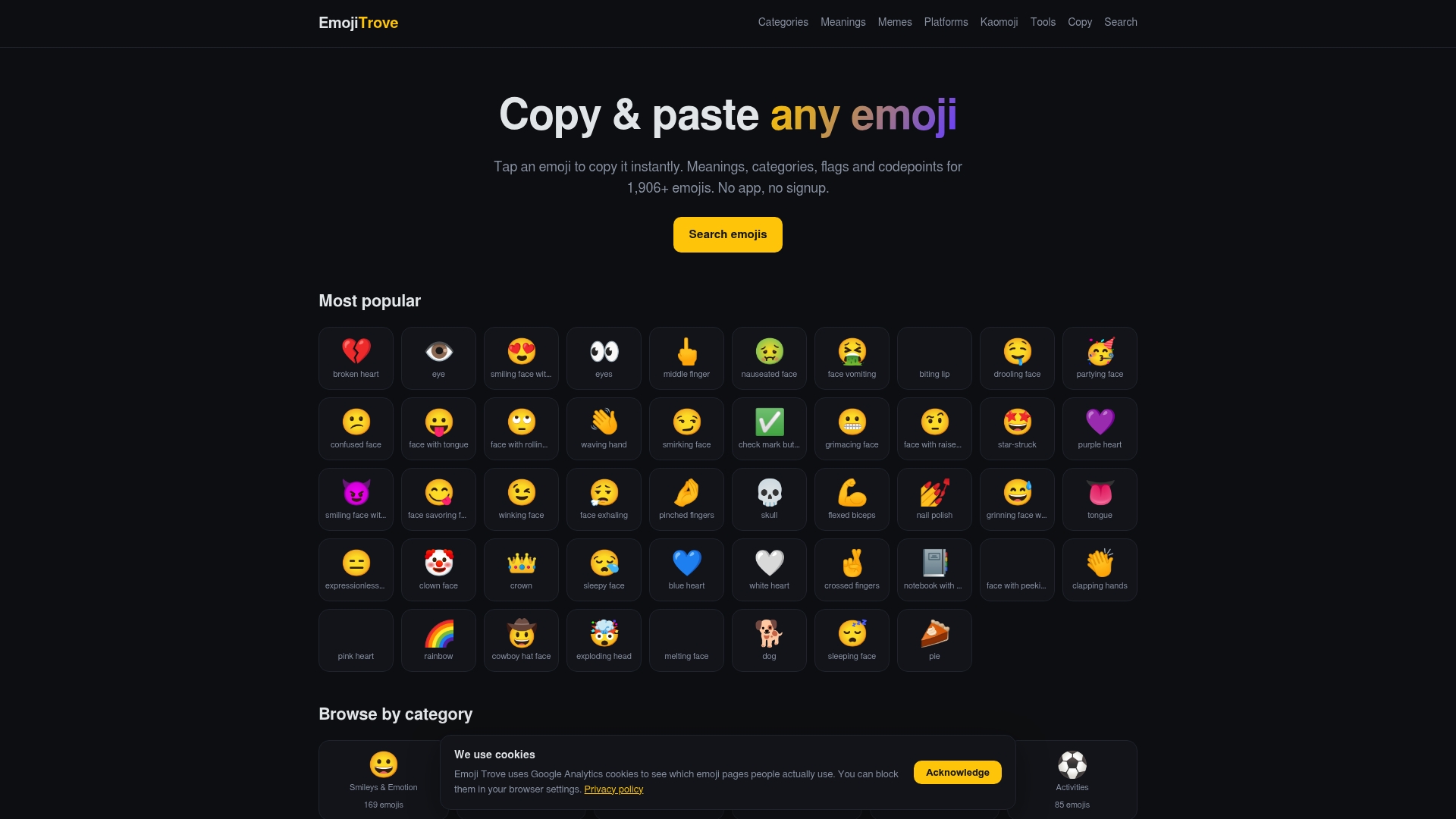
Start on the Emoji Trove home page, or look at a single entry such as the eye emoji page to see how meaning, usage and copy options sit together.
A short troubleshooting checklist
When search returns nothing useful, run through these in order:
- Shorten the query. One word beats a phrase.
- Swap the word. Try a synonym or the object itself.
- Switch to browsing. Open the likely category and scan.
- Update your device. Newer emoji need a newer operating system or keyboard version.
- Check the keyboard. If there is no search field, find out which keyboard you use and look up its entry point.
- Use a library. Search once, copy, and paste.
FAQ
How do I search for an emoji by name?
Open your keyboard’s emoji panel and type the name into the search field, such as “heart” or “laughing”. On iPhone, the field is labeled Search Emoji, and on Windows you press Windows key + period and start typing. The results come from each emoji’s short name and keywords.
Why can’t I find an emoji I saw someone else use?
The most common reason is that your device does not yet support that emoji, because newer releases need an up-to-date operating system or keyboard. The second is vocabulary: the emoji may be filed under a different keyword than the one you typed. Try a synonym, or browse the category it likely belongs to.
Can I search emojis on a computer?
Yes. On Windows 10 or 11, press Windows key + period and type a keyword to filter. On a Mac, press Fn/Globe + E or choose Edit > Emoji & Symbols and search with a word or phrase. A web library also works in any browser.
How do I find emojis by theme instead of by name?
Use the category icons on your keyboard, or browse a categorized library. Themes such as animals, food, travel and objects let you scan a small group instead of the full set. This works best when you recognize the picture but not its name.
Sources
- Use emoji on your iPhone, iPad, and iPod touch, Apple Support
- Use emoji and symbols on Mac, Apple Support
- Windows keyboard tips and tricks, Microsoft Support
- Add emojis to your Outlook emails, Microsoft Support
- How do I use Emoji Search with Microsoft SwiftKey?, Microsoft Support
- Use your keyboard on Android, Gboard Help
- How to Search for Emoji and GIFs in Android’s Gboard Keyboard, How-To Geek
- CLDR Baltic annotations, Unicode
- CLDR Americas annotations, Unicode