Make Emojis Render in Email: Outlook, Gmail and OS Pickers
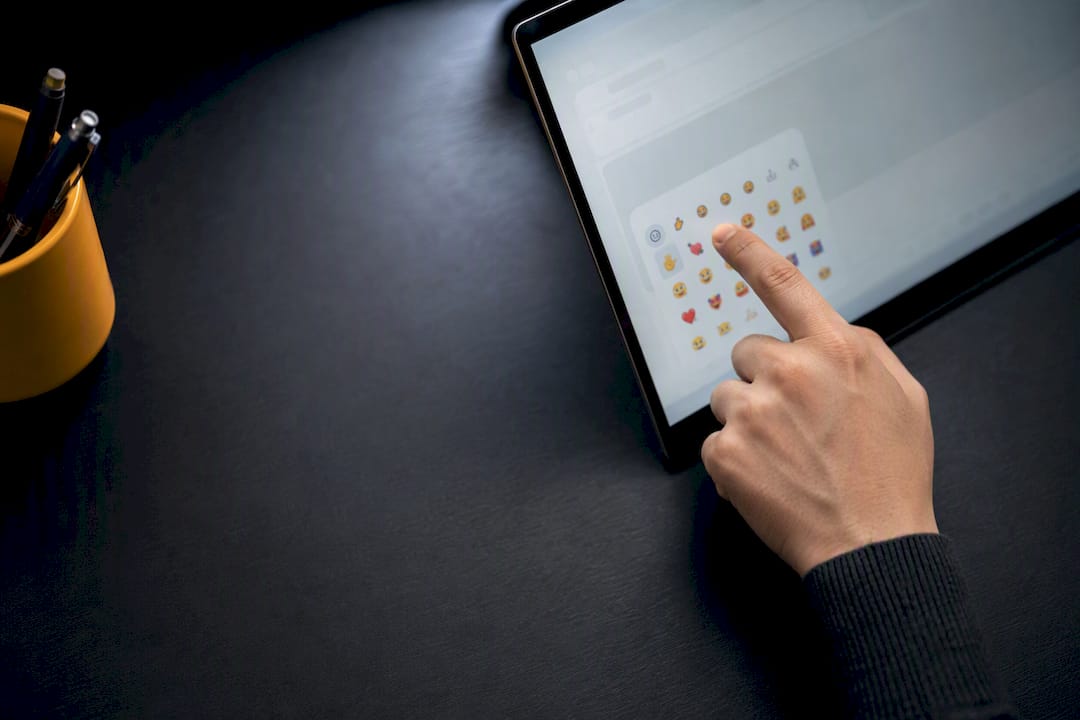
To add an emoji right now, open your OS emoji picker (Windows: Win + . ; Mac: Control + Command + Space), or use your email clients built in emoji button, or paste one copied from an emoji library like Emoji Trove. Do that first, then check the section below on testing before you send anything that matters.
TL;DR:
- Using the OS emoji picker works on Windows with Win + . and on Mac with Control + Command + Space, across most email platforms.
- The built-in emoji buttons in Gmail and Outlook are convenient but often limited to the message body, not the subject line.
- Copy-pasting from an emoji library is the most reliable method when keyboard shortcuts or app buttons are restricted or unavailable.
- Emojis should be used sparingly, with one or two in subject lines and only in casual or internal messages, to avoid appearing unprofessional or spammy.
- Testing how emojis render on different email clients and devices helps prevent miscommunication and display issues.
Table of Contents
- How Do You Insert an Emoji in an Email?
- Where Do I Find Emoji Shortcuts by Platform?
- When Should You Actually Use Emojis in an Email?
- What Do Recipients Actually See and Hear?
- The One Rule That Actually Matters
- Find the Right Emoji Faster With Emoji Trove
- Sources
- FAQ
How Do You Insert an Emoji in an Email?
You have three real options, and which one wins depends on where you are typing and what device you are on.
- Use your operating system’s emoji picker. On Windows, press Win + . (the period key) with your cursor in the subject line or the message body, and a small emoji panel pops up right where you’re typing. On a Mac, press Control + Command + Space and the same kind of picker appears, complete with a search bar so you don’t have to hunt through categories. Microsoft documents this shortcut as the standard way to get emoji into an Outlook compose window, and it works the same way in most other Windows apps.
- Use the emoji button built into your email client. Gmail has a small smiley icon at the bottom of the compose window. Outlook on the web and desktop has a similar icon on the ribbon or toolbar. Click it, pick your emoji, and it drops into wherever your cursor sits in the body. One catch worth knowing early: Gmail’s toolbar button only works in the message body, not the subject line, so if you want an emoji in the subject, you’ll need the OS picker or copy-paste instead.
- Copy and paste from an emoji library. Search a site like Emoji Trove for the exact character you want, click to copy it, and paste it directly into your subject or body with Ctrl+V or Command+V. This is the fastest route when you already know exactly which emoji you want, and it’s the only reliable method if your device’s picker is missing, disabled, or you’re working in a stripped down webmail interface.
One more distinction worth knowing before you commit to a look: standard character emoji (the kind covered above) are text, so they load instantly and match your font color and size. Animated emoji and GIFs are different. Those are actual image files, and they often need a separate add-on or manual image insertion rather than a simple keystroke. They also add load weight to the email and can get blocked by some inboxes, so save them for casual, low-stakes messages rather than anything you need to land cleanly.
Where Do I Find Emoji Shortcuts by Platform?
Here’s the quick reference so you’re not hunting for the right keys every time.
- Windows: Win + . (period) opens the picker with a search bar. Works in the subject line and the body in Outlook and nearly every other compose field on the system.
- macOS: Control + Command + Space opens the character viewer. Works anywhere you can type, including Outlook for Mac and browser-based Gmail.
- Gmail (web): Click the smiley icon in the compose toolbar for body text. For the subject line, switch to your OS picker or paste a copied emoji instead.
- Outlook (web and desktop): Use the emoji icon on the compose ribbon, or trigger the Windows picker with Win + . for both subject and body fields.
- iOS: Tap the globe icon on your keyboard to switch to the emoji keyboard, or long press the space bar on newer versions.
- Android: Tap the smiley icon on the Gboard keyboard, usually sitting to the left of the space bar.
If you’re on a locked down work laptop where the OS shortcut is disabled by IT policy, copy-paste from a library page is your most dependable fallback, since it sidesteps keyboard restrictions entirely.
When Should You Actually Use Emojis in an Email?
Emojis adjust tone. They don’t carry meaning on their own, and treating them like a substitute for words is where most people go wrong. Never swap out an important word for an emoji and expect the message to survive. “Sent the file 📎” is fine as a friendly aside. “📎 the report” as your entire sentence is confusing and looks careless.
A few rules keep you out of trouble:
- Cap subject lines at one or two emojis. More than that starts to resemble the kind of pairing spam filters flag, and subject line emoji use should generally be tested rather than assumed to help, since the effect on open rates varies a lot by industry.
- Mirror the recipient’s existing tone. If they’ve never used an emoji with you, don’t be the one to introduce it in a formal thread.
- Stick to widely supported characters. Obscure or very new emoji sometimes render as a blank box on older devices, which looks like an error, not a feature.
- Keep animated emoji and GIFs for casual, internal, or personal messages, never for anything client-facing or transactional.
Checking what an emoji actually signals before you use it matters more than people assume. Emoji Trove’s meaning pages break down what a given character typically communicates, which is worth a quick check before you send something to a client for the first time.
Pro Tip: If you’re not sure whether an emoji fits the relationship, leave it out of your first message and add it once the recipient uses one themselves. Following their lead is safer than setting the tone yourself.
What Do Recipients Actually See and Hear?
Not everyone sees your carefully chosen emoji the way you intended it, and that gap is easy to miss until it costs you.
- Screen readers announce the formal Unicode name, not the visual idea you had in mind. A “party popper” gets read aloud as exactly that phrase, which is why emoji should never stand in for the actual words of your sentence if the message needs to work for someone using assistive technology.
- Rendering varies by platform. The same character can look slightly different, or in rare cases show up as an empty box, depending on whether the recipient is on Gmail, Outlook, Apple Mail, iOS, Android, or an older version of Windows. Testing across clients before sending broadly is the single most reliable way to catch this before it becomes a problem.
- Run a quick test send. Fire a test message to yourself on a phone and a desktop, then open it in a couple of different clients. Emoji Trove’s platform preview pages let you check how a specific character looks on iOS, Android, and other systems before you even open your email client.
When precision matters more than personality, the safer move is to skip the emoji or keep it purely decorative at the very end of a sentence that already makes sense without it.
The One Rule That Actually Matters
Treat emoji like seasoning, not sauce. A single well placed character adds warmth to a message that would otherwise read flat. Three or four in a row start to compete with your actual words, and the recipient stops reading them as tone and starts reading them as noise.
Before you hit send, ask yourself three quick questions: who is this going to, what’s the relationship, and what does this message need to accomplish? A quick note to a coworker you talk to daily can carry a friendly wave emoji without a second thought. A cold email to a new client cannot, at least not until they’ve shown you it’s welcome. When in doubt, leave it out. You can always add warmth in your next reply once you know how the other person writes.
— Nkosi
Find the Right Emoji Faster With Emoji Trove
Knowing the keyboard shortcuts only gets you halfway there. The harder part is often figuring out which of the thousands of available characters actually fits what you’re trying to say, and scrolling through your OS picker’s categories is slow and easy to give up on. Some emoji libraries offer a searchable collection of emojis organized so you can type what you mean and find matching characters, rather than guessing at icon names.
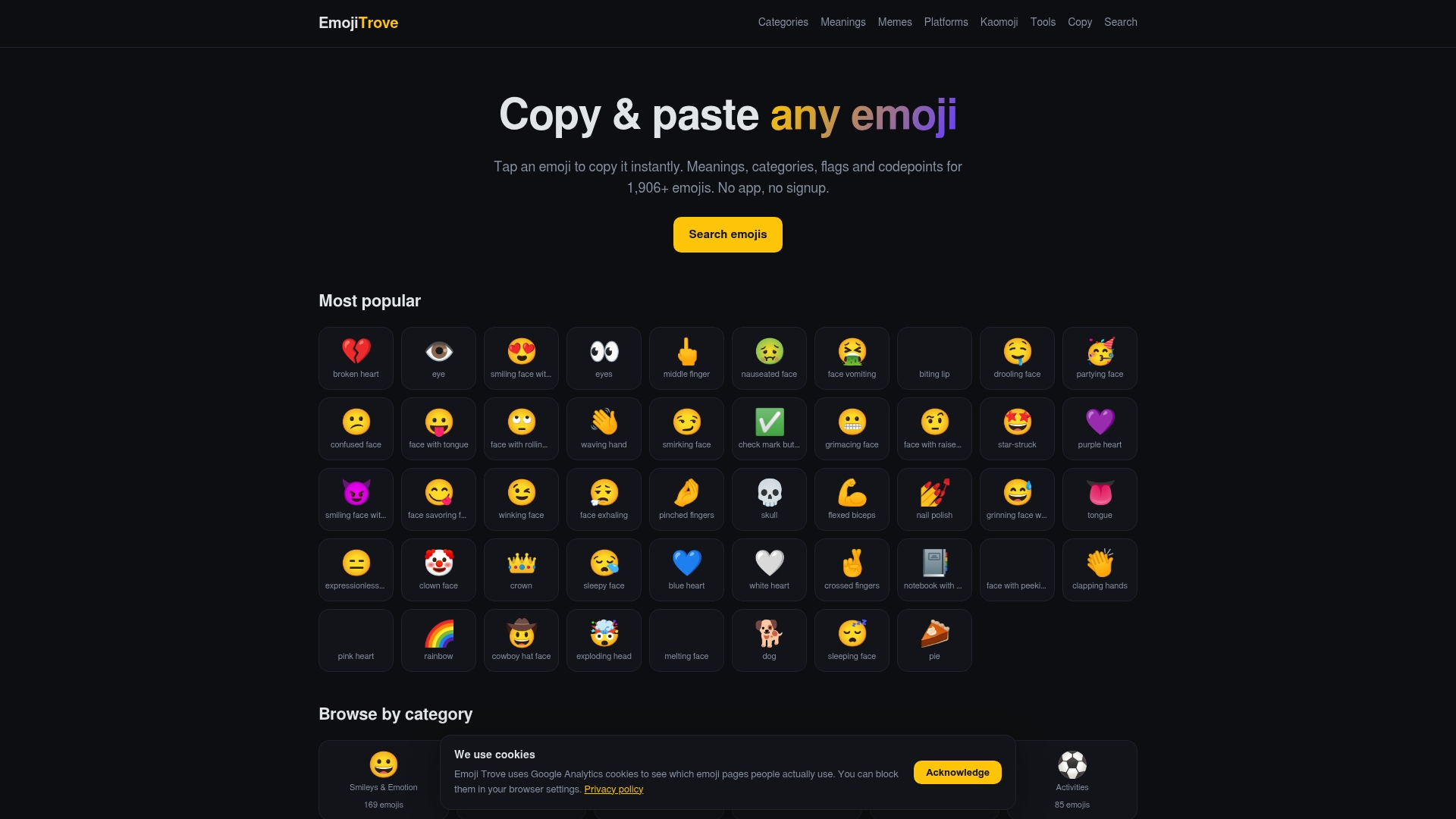
Once you’ve found the right one, the copy and paste tool puts it on your clipboard in a single click, ready to drop straight into your subject line or body without touching a picker at all. If you want to double check how a character will look before you commit, the platform preview pages show you the rendering across different devices, and the emoji tools page rounds up text symbols and other extras for anyone who sends a lot of email and wants to move faster. Open an emoji library, search for what you need, copy it, and paste it into your next message.
Sources
- Add flair to your email with emojis | Microsoft Support
- How to add emojis to email (Gmail, Outlook, and mobile) – cloudHQ
- Use emojis in emails | Omnisend Help Center
- Emojis and accessibility: what to know | TinyMCE blog
FAQ
How Do I Insert an Emoji in an Email?
Press Win + . on Windows or Control + Command + Space on Mac to open your system’s emoji picker, or click the emoji icon in Gmail’s or Outlook’s compose toolbar. You can also copy an emoji from a library like Emoji Trove and paste it directly into your subject or body.
How Do I Add an Emoji to an Outlook Email Subject Line?
Place your cursor in the subject field and press Win + . on Windows to open the picker, since Outlook’s compose ribbon button typically inserts into the body rather than the subject. Copying and pasting a character from an emoji library works in the subject line every time, regardless of platform.
How Do You Type a Laughing Emoji on a Keyboard?
On Windows, press Win + . and search “laughing” or “joy” in the picker that appears. On Mac, press Control + Command + Space, type the same search term, and select the matching face from the results.
Why Does My Emoji Show Up as a Box Instead of a Picture?
That blank box means the recipient’s device or email client doesn’t support that specific emoji character, which happens more often with newer or less common emoji on older systems. Sticking to widely supported, simple emoji and testing across a few devices before sending reduces the chance of this happening.
Are Emojis Appropriate for Professional Emails?
A single, well chosen emoji can soften tone in a professional email once you already have some rapport with the recipient, but it’s safer to mirror their existing style rather than introduce one first. Formal or first-contact emails are the cases where it pays to leave emoji out entirely.