Slack Emojis Guide: Reactions, Custom Emoji and Team Etiquette

Slack emojis do three jobs: they react to messages, they decorate text, and, once you upload your own, they become a small private language for your team. To use them, type a colon plus a name (like :tada:) or open the smiley-face menu. To add your own, choose Add Emoji in that menu and upload a square image. This guide covers all of it, including bulk uploads, permissions, and which reactions mean what.
TL;DR
- Type a colon and a few letters to search emoji inline, or click the smiley face in the message box. Hover over any message and click Add reaction to respond without writing a reply.
- Custom emoji are uploaded from the emoji menu. Square images under 128KB with transparent backgrounds work best, in JPG, PNG or GIF.
- Slack uploads one custom emoji at a time natively. Bulk uploading needs a third-party browser extension, so weigh the access it asks for.
- Most members can create custom emoji by default, but owners can restrict that, and members can generally delete only their own.
- A few reactions (👀, ✅, 🙏, 👋) have near-universal workplace meanings. Everything else depends on your team and culture.
Table of Contents
- How to find and use emojis in Slack messages
- What popular Slack emojis usually mean
- How to add a custom emoji to Slack
- Who can create and delete custom emoji
- Can you bulk upload emojis to Slack?
- How to see who added a custom emoji
- Building an emoji culture that helps work
- Our view: emoji are shared vocabulary, not decoration
- Find the right emoji before you paste it
- FAQ
- Sources
How to find and use emojis in Slack messages
There are two quick ways to insert an emoji in a message. You can type a colon followed by a standard emoji code or alias, and Slack suggests matches as you type. Or you can open the emoji menu with the smiley face icon in the message box and pick one. Both methods are described in Slack’s own help page on emoji and reactions.
The colon method is faster once your fingers learn it. Type :rocket and the picker narrows as you go. Press Enter or Tab to accept the highlighted suggestion. The menu is better for browsing when you do not know the name of what you want.
If you need an emoji that Slack’s picker does not surface easily, you can look it up in a searchable library and paste it straight into the message box. Our technology emoji collection is a handy example if your channel talks about software, devices or releases, and every emoji in it copies with one click.
Reactions: the fastest reply
A reaction is an emoji attached to a message rather than typed into the thread. On desktop, hover over the message and click Add reaction. On mobile, tap and hold the message. According to Slack’s help documentation, reactions can often stand in for a follow-up message, which is exactly why they exist.
Think about the traffic this saves. A teammate posts, “Deploy is done.” Five people could each reply “Great, thanks.” Or five people click 🎉 and the channel stays quiet. Reactions also leave a visible tally, so anyone can see at a glance how many people have acknowledged something.
Some practical habits:
- Click an existing reaction instead of adding a new one. It increments the count and keeps the message tidy.
- Use reactions for acknowledgment, not for decisions that need a record. If a budget approval matters, write it out.
- Avoid reacting with ambiguous emoji on serious messages. A 😂 under someone’s bad-news post reads very differently from what you intended.
What popular Slack emojis usually mean
Slack itself has described a handful of reactions that show up again and again. Its messaging essentials post lists 👀 for looking into it, ✅ for complete or approved, 🙏 for please or thank you, 🙌 for a celebratory “Yeah!”, and 👋 for hello or a call for help. A Business Insider list of reactions used by Slack employees points the same way, adding 👍 for agreement.
| Emoji | Typical meaning at work | Good for |
|---|---|---|
| 👀 | I’m looking at this | Claiming a request before you have an answer |
| ✅ | Done, complete or approved | Closing the loop on tasks and requests |
| 👍 | Agreed, got it | Light acknowledgment |
| 🙏 | Please, or thank you | Polite asks and thanks |
| 🙌 | Celebration, “Yeah!” | Wins, launches, good news |
| 👋 | Hello, or a wave for attention | Greeting new people, flagging for help |
The 👀 and ✅ pair is the workhorse of many teams. Someone posts a request, a teammate adds 👀 to say they have it, and ✅ goes on when it ships. Nobody has to type a word, and everyone knows where things stand. If you want to understand the eye symbol itself, we have a page on the eye emoji and its meaning.
Meaning shifts by team and by culture
Be careful assuming everyone reads an emoji your way. Slack’s own research on emoji at work found that 59% of respondents in Japan associated 💸 with losing money, while 31% globally read it as money coming in. A single symbol, opposite readings.

Teams also develop meanings of their own. A glossary of Slack emoji notes that many emoji meanings are self-evident, while others pick up specific, bespoke meanings inside a team or organization. One group’s 🧊 means “blocked,” another’s means “cool, nice work.” If your workspace is international or spans several departments, it helps to write down the meanings you rely on.
The case for using emoji at all is reasonable. A 2022 survey commissioned by Slack and Duolingo found that over half of hybrid workers believe emoji speed up workplace communication, as Business Insider reported. Slack says emoji help people acknowledge one another, clarify intent and add color to work, in the same post on emoji at work.
If your team also uses other chat apps, meanings can differ there too. Our guide to what WhatsApp emojis mean is a useful comparison, and the office emoji collection covers symbols suited to workplace messages.
How to add a custom emoji to Slack
Custom emoji are where Slack gets personal: your team’s logo, an inside joke, a photo of the office dog. Here is the process, following Slack’s instructions for adding custom emoji and aliases:
- Click the smiley face icon in the message box to open the emoji menu.
- Click Add Emoji.
- Upload your image.
- Give it a name. This becomes the code people type between colons.
- Save it. The emoji is now available across the workspace.
Image requirements that save you a re-upload
Slack recommends square images under 128KB, ideally with transparent backgrounds, in JPG, PNG or GIF format. Those details matter more than they sound:
- Square keeps the image from being squashed or awkwardly cropped at small sizes.
- Under 128KB is a hard practical limit. Compress large files before uploading.
- Transparent background lets the emoji sit cleanly on both light and dark themes. A white box around a logo looks wrong in dark mode.
- Simple shapes survive being shrunk to text size. A detailed photo becomes a smudge, so crop tight on the subject.
If you are working from a photo, crop to a square first, remove the background in any image editor, export as PNG, and check the file size. Test the emoji in a private channel or a direct message to yourself before you announce it.
Naming custom emoji
Names are how people find your emoji, so they deserve a minute of thought. Use lowercase, short and descriptive words, and put a shared prefix on families of related emoji. A team might use :team-shipit: and :team-blocked: so typing :team- surfaces the whole set. Avoid names that duplicate or nearly duplicate standard emoji, or nobody will know which one they are getting.
Aliases: another way to find standard emoji
An alias is an extra code for an existing emoji. If everyone on your team types :lgtm: but there is no such emoji, you can alias it to 👍 so the shorthand works. Slack’s documentation says aliases are configured from the Customize menu for your workspace, listed under the workspace name. Aliases are a good fix when your team’s vocabulary differs from Slack’s defaults.
Who can create and delete custom emoji
By default, any member can create custom emoji, but guests and Frontline Members cannot, according to Slack’s page on custom emoji permissions. Workspace Owners and Org Owners can change this in the Roles & permissions settings, which is useful if you want a person or small group to curate the set.
For deletion, the rules are similar. Owners and Admins can search for and delete specific emoji from the Customize menu. Members can generally delete only the custom emoji they uploaded themselves, as Slack’s custom emoji help page explains.
Keeping the library from turning into clutter
After a year or two, active workspaces can end up with hundreds of emoji, many of them near-duplicates. A few habits keep it usable:
- Agree on a naming convention before the library grows.
- Restrict uploads to a small group if the clutter is already a problem.
- Periodically search for obvious duplicates and delete them, after checking they are not in heavy use.
- Post a short guide in a pinned message so new hires know the house meanings.
Can you bulk upload emojis to Slack?
Not natively. Slack adds one custom emoji at a time, and WIRED has noted that anyone with a large set of images has to rely on third-party tools. That is the same limitation behind the question many people ask: how do I add fifty emoji without fifty trips through the upload screen?
The usual answer is a browser extension. For example, the Neutral Face Emoji Tools listing in the Chrome Web Store describes a bulk uploader on Slack’s emoji customization page: you drag and drop several image files, and the filenames become the emoji names. That means naming your files properly beforehand, in lowercase with hyphens, saves cleanup later.
A caution before you install anything. Tools like this work inside your logged-in Slack session, so they need broad access to your account. Check who made the extension, read what permissions it requests, and ask your workspace admin before using it on a company workspace. If your organization has security rules about browser extensions, follow them.

What about the API?
Developers sometimes look to Slack’s APIs for this. The admin.emoji.list method lists custom emoji across an Enterprise organization, but it lists them rather than uploading them, so it is not a bulk upload endpoint. Slack also sends an emoji_changed event when a custom emoji is added, removed or renamed, which is useful if you are building an app that keeps track of your emoji set.
How to see who added a custom emoji
The regular Slack interface does not make this obvious. For Enterprise organizations, the admin.emoji.list method mentioned above returns an example response that includes an uploaded_by user ID, so an admin or developer can match an emoji to the person who uploaded it. On smaller workspaces, the practical route is to ask an admin, or to check your team’s channel history for the announcement post.
Building an emoji culture that helps work
The best emoji setups share a few traits. They are small enough that people can remember them, specific to the team’s real tasks, and documented somewhere obvious. Some ideas that work well:
- Status reactions: 👀 for in progress, ✅ for done, ⏸️ for waiting.
- Recognition emoji: a custom shout-out emoji that colleagues add to messages praising someone’s work.
- Voting: assign numbered emoji to options and ask people to react once to choose.
- Request markers: a custom emoji for “needs review” so the right people can search for it.
Remember that emoji are not neutral at work. A reaction that is harmless in one team may land badly in another, and some pictograms can carry other connotations. For instance, the red flag emoji means something quite specific in dating conversations, and probably should not appear on a colleague’s project update. When in doubt, pick the plain option.
Our view: emoji are shared vocabulary, not decoration
We run an emoji library, so we see what people search for every day, and a pattern repeats: people rarely want a prettier emoji. They want the right one, fast, and they want confidence that the person reading it will understand. Slack is a perfect example. The platform is built around quick acknowledgment, so a reaction that takes one click and means the same thing to everyone is worth more than an elaborate custom graphic.
Our advice is to start with a small, shared set of meanings: 👀, ✅, 🙏, 👋, and one or two celebratory options. Write them down. Only then add custom emoji, and add them for things your team actually says often. A library of 400 custom emoji that nobody can find is worse than 20 that everyone uses.
We also think meaning should be checked, not assumed. If you are unsure how a symbol reads, look it up before you use it in a channel with colleagues from other regions.
— Nkosi
Find the right emoji before you paste it
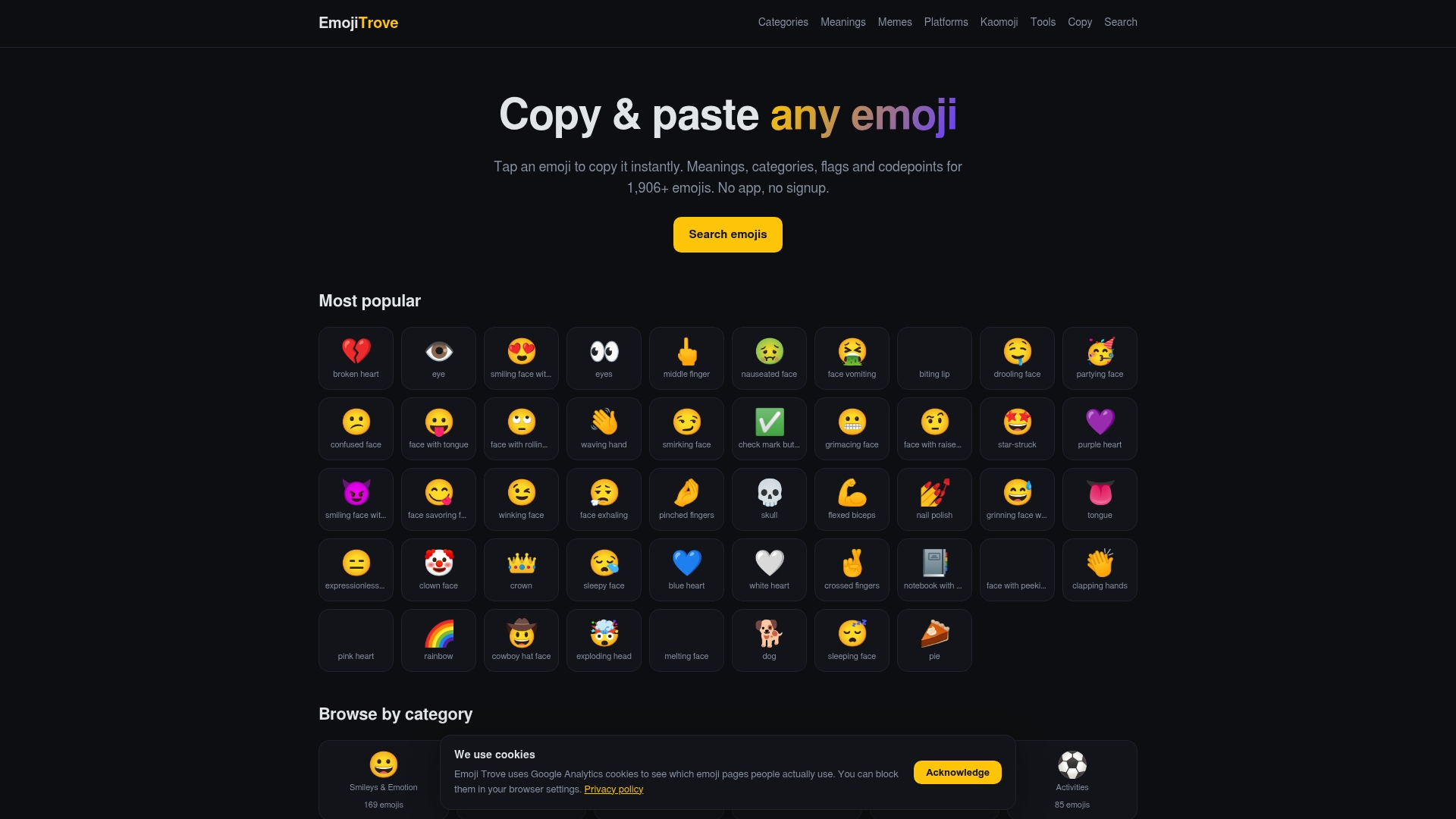
If you are hunting for a specific emoji to use in Slack, Emoji Trove lets you search more than 1,900 emojis by theme, read what each one means, and copy it with one click. That is handy when you want to confirm a symbol’s meaning before it lands in a team channel, or when the Slack picker does not show what you need. Our pages also include Unicode data, so you can see how emoji are officially defined. You can browse newer additions in Emoji 16.0, though keep in mind that a newly released emoji may not display for everyone yet.
Emoji can also look different or break entirely outside chat apps. If you are pasting into messages sent beyond Slack, see our guide to making emojis render in email.
FAQ
How do I use emojis in Slack?
Type a colon and the start of an emoji name, then choose from the suggestions, or click the smiley face icon in the message box and pick from the menu. To react to a message, hover over it and click Add reaction, or tap and hold on mobile.
How do I add custom emojis to Slack?
Open the emoji menu, click Add Emoji, upload an image, and name it. Square images under 128KB with transparent backgrounds work best, in JPG, PNG or GIF format. Whether you can add one depends on your workspace’s permission settings.
Can I upload many custom emojis at once?
Not with Slack’s built-in tools, which add one at a time. Third-party browser extensions can upload several images at once, but they work through your logged-in session, so check their permissions and your organization’s policy first.
What does 👀 mean in Slack?
It usually means someone is looking into something. People add it to a request to say they have seen it and are working on it, then follow up with ✅ when it is done. Your team may use it slightly differently, so check any house conventions.
Why can’t I add a custom emoji?
Most likely your role does not have permission. Members can usually create custom emoji, but guests and Frontline Members cannot, and owners can restrict the setting further. Ask a Workspace Owner or Admin to check the permissions.
Sources
- Use emoji and reactions | Slack
- Slack Essentials: Getting the most out of messaging | Slack
- Beyond the smile: how emoji use has evolved in the workplace | Slack
- Top Emojis and Reactions Used by Slack Employees | Business Insider
- Slack emoji glossary
- Add custom emoji and aliases to your workspace | Slack
- Manage custom emoji permissions | Slack
- How to Upload Custom Emoji in Slack | WIRED
- Neutral Face Emoji Tools | Chrome Web Store
- admin.emoji.list method | Slack Developer Docs
- emoji_changed event | Slack Developer Docs