Emojis on Linux: Fonts, Pickers and Fixes for Ubuntu and More

Emojis on Linux depend on two separate pieces: a color emoji font that draws the pictures, and a picker or input method that lets you insert them. Install Noto Color Emoji for the first, use your desktop’s built-in picker or a small app for the second, and most problems go away. This guide covers both, with commands for Ubuntu, Debian and Arch, the KDE shortcut, and a fix for the empty boxes that show up when the font is missing.
TL;DR
- Linux draws emojis with fonts. On Debian and Ubuntu, install
fonts-noto-color-emoji. On Arch, installnoto-fonts-emoji. - Empty rectangles almost always mean the color emoji font is missing or not set as a fallback. Install it, refresh the font cache and restart the app.
- For typing, use your desktop’s picker (right-click, then Insert Emoji, in GTK fields; Meta+. on KDE) or install GNOME Characters or ibus-typing-booster.
- Pick one emoji font. Stacking several can cause conflicts.
- Prefer to copy and paste? Search our library, copy, and paste into any app.
Table of Contents
- Why emojis work differently on Linux
- Step 1: Install a color emoji font
- Step 2: Fix empty boxes and missing emojis
- Step 3: Open an emoji picker
- Step 4: Copy and paste when nothing else works
- Ubuntu quick path
- Perspective
- Find the emoji you need faster
- FAQ
- Sources
Why emojis work differently on Linux
Windows and macOS ship with an emoji font and a keyboard panel. Linux is a collection of choices: the distribution decides which fonts are installed, the desktop decides whether there is a picker, and each app decides how it handles text input. That is why the same emoji can look fine in a browser and appear as a box in a terminal.
Two questions sort out nearly every case:
- Can your system display the emoji? That is a font question.
- Can you type or insert it? That is a picker or input method question.
Solve them in that order. There is no point in setting up a picker if the result renders as an empty rectangle.
Step 1: Install a color emoji font
The most common choice is Google’s Noto Color Emoji. Debian describes fonts-noto-color-emoji as Google’s color emoji font, and Arch lists noto-fonts-emoji as the same font in its Extra repository.
Ubuntu and Debian
This is the answer to “how do I add emojis in Ubuntu” for most people:
sudo apt update && sudo apt install fonts-noto-color-emoji
The Ubuntu-focused guide from StarryHope gives this same command as the fix when emoji render as empty rectangles. Ubuntu’s current releases usually include the font already, but minimal installs, containers and some derivatives do not.
Arch Linux and Hyprland
On Arch, the package is in the Extra repository:
sudo pacman -S noto-fonts-emoji
Hyprland is only a compositor, so it does not change the font side. Install the package, then restart your apps. If emoji still do not appear, set the font as a fallback, as described below.
Other distributions
openSUSE’s Emoji page lists Emoji One, Noto Color Emoji and Twitter Emoji as colored emoji font choices. The same page cautions that installing several emoji fonts may cause problems. Our reading of that advice: choose one, install it, and stop there. If you want a different look later, remove the old font first rather than adding a second one.

Does the font have the newest emojis?
A font only draws emojis it knows about. When Unicode adds a new batch, distributions need to ship an updated font. OMG! Ubuntu reported in 2024 that a proposed update to fonts-noto-color-emoji, version 2.047, was expected to bring Unicode 16.0 emojis to Ubuntu 22.04 and 24.04 LTS. If a brand new emoji shows as a box while older ones are fine, the font is out of date, not missing. You can see which emojis arrived in that release on our Emoji 16.0 page.
Step 2: Fix empty boxes and missing emojis
If you have installed the font and still see rectangles, work down this list.
- Refresh the font cache. Run
fc-cache -fv, as the StarryHope guide suggests. - Restart the affected app. Many programs read the font list only at launch. Log out and back in if a restart does not help.
- Check the fallback. A Linux font-rendering write-up explains that boxes appear when the selected font lacks the glyph and no fallback is configured. It shows how to add Noto Color Emoji as a Fontconfig preference, then refresh with
fc-cache -f. - Remove duplicate emoji fonts. Following openSUSE’s caution above, if you have several color emoji packages, keep one.
A minimal Fontconfig preference
Fontconfig reads small XML files from ~/.config/fontconfig/conf.d/. A common pattern is a file such as 01-emoji.conf that tells the system to try Noto Color Emoji when a font has no glyph for a character. The write-up above walks through the exact contents. After saving the file, run fc-cache -f and restart the app.
Terminals behave differently
Terminal emulators often use a monospace font with their own fallback rules, and some draw wide emoji badly even when the font is installed. If emojis work in your browser but not in the terminal, the font is installed correctly. Check the terminal’s font settings and its fallback support instead.
Step 3: Open an emoji picker
Once the font works, you need a way to insert emojis. The options depend on your desktop.
GNOME and Ubuntu: GTK picker
In many GTK apps you can right-click inside a text field and choose Insert Emoji, according to the StarryHope guide. The same guide warns that this may not work in terminals, Qt applications, or apps with their own text input handling. That covers a lot of ground, which is why the next option exists.
GNOME Characters
For apps without the GTK picker, install the standalone app:
sudo apt install gnome-characters
Launch Characters, select an emoji and paste it into the target app, as the same guide describes. You can also assign a custom keyboard shortcut to launch it, which makes it feel close to the picker on other systems.
KDE Plasma
KDE documents the Emoji Picker shortcut as Meta+. (Meta and the period key). You can search or browse, and the picker copies the selected emoji to the clipboard. KDE also notes that KCharSelect is not pre-installed and can be installed through Discover, which is useful when you need symbols and accented characters as well as emojis.
ibus-typing-booster
If you want to type emojis by name inside the text you are writing, ibus-typing-booster works as an input method. Its documentation gives the Debian and Ubuntu install command as sudo apt-get install ibus-typing-booster and says the package includes an emoji picker. It also handles multilingual input, so it suits people who switch between languages as well as emojis.
Which method should you use?
| Situation | Best option |
|---|---|
| GNOME or Ubuntu, GTK apps | Right-click, then Insert Emoji |
| Terminals, Qt apps, Electron apps | GNOME Characters or copy and paste |
| KDE Plasma | Meta+. Emoji Picker |
| You want to type emoji names inline | ibus-typing-booster |
| You want themed sets or meanings first | Copy from an online library |
Step 4: Copy and paste when nothing else works
Some apps ignore every system picker. Electron apps, web apps and games often handle input on their own. In those cases the clipboard is the most reliable route: find the emoji, copy it, and paste it with Ctrl+V (or Ctrl+Shift+V in most terminals).
The same goes for web work. If you are writing markup, our guide to emoji in HTML covers the characters and codes that render reliably, and the email emoji guide explains what survives in Outlook and Gmail. For chat, see our Slack emoji guide.

Ubuntu quick path
If you only want the shortest route on Ubuntu, do this:
- Run
sudo apt update && sudo apt install fonts-noto-color-emoji. - Run
fc-cache -fv. - Restart the app, or log out and in.
- Right-click in a text field and choose Insert Emoji, or install
gnome-charactersfor other apps. - For anything else, copy the emoji from a library and paste it.
Perspective
Linux users get the hardest version of the emoji problem. The font, the picker and the app are three separate pieces, and any one of them can fail without telling you which.
We built Emoji Trove around the idea that finding an emoji should never depend on your setup. Search by name or browse by theme, copy with one click, and paste anywhere. That works on a minimal Arch install as well as a full Ubuntu desktop, because the clipboard is the one thing every Linux app supports.
We also think a picker is only half the job. Knowing what an emoji means, how it looks across platforms and which Unicode version introduced it saves you from sending a box or a misread symbol. That context is what we add to the library.
Nkosi
Find the emoji you need faster
A system picker is fine for a smiley. It gets slow when you want a specific animal, a themed set or the exact meaning behind a symbol. Emoji Trove is a searchable library of over 1,900 emojis organized by theme, with instant copy-to-clipboard, meanings, Unicode data, kaomoji and bulk sets. It works in any Linux browser, so there is nothing to install.
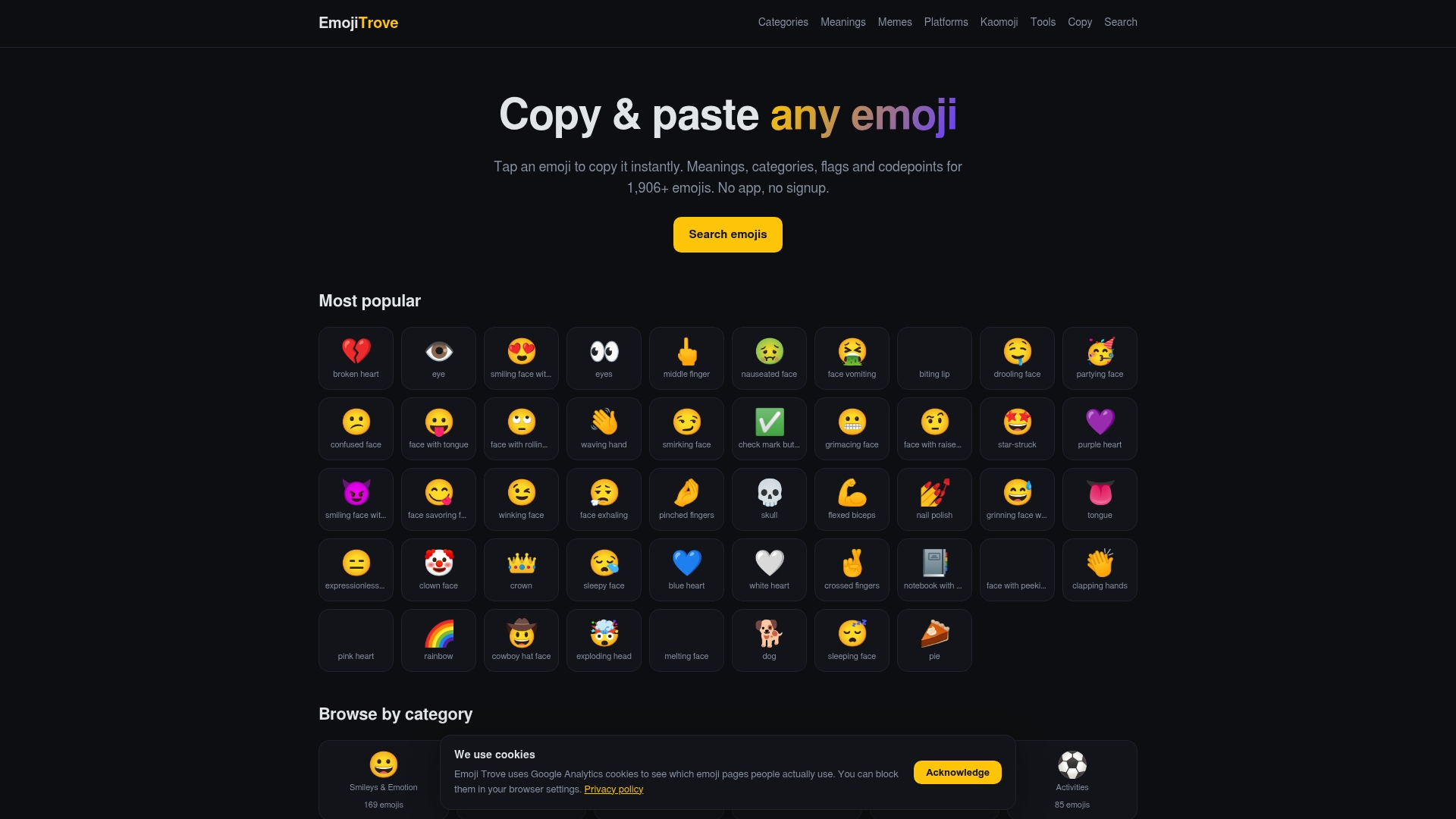
Search and copy emojis on Emoji Trove and paste them into any app, terminal-friendly or not.
FAQ
How do I add emojis in Ubuntu?
Install the color emoji font with sudo apt update && sudo apt install fonts-noto-color-emoji, then restart your apps. To insert emojis, right-click in a GTK text field and choose Insert Emoji, or install GNOME Characters with sudo apt install gnome-characters. Both steps come from the StarryHope Ubuntu guide.
Why do my emojis show as empty boxes on Linux?
The font you are using has no glyph for the emoji, and no color emoji font is set as a fallback. Install Noto Color Emoji, refresh the cache with fc-cache -fv and restart the app. A font fallback walkthrough shows how to set the preference in Fontconfig.
Is there a Linux emoji keyboard shortcut?
It depends on the desktop. KDE Plasma documents Meta+. for its Emoji Picker. On GNOME and Ubuntu, the right-click Insert Emoji menu works in many GTK fields, and you can assign your own shortcut to launch GNOME Characters.
Can I install more than one emoji font?
You can, but it is not recommended. openSUSE’s Emoji page warns that installing multiple emoji fonts may cause problems. Keep one, usually Noto Color Emoji, and remove the others if you see odd rendering.
Why does a new emoji show as a box when others work?
Your font is probably older than the emoji. New Unicode releases need updated font packages, as the Unicode 16.0 update for Ubuntu showed. Update your system packages and check again.
Sources
- Debian: fonts-noto-color-emoji package
- Arch Linux: noto-fonts-emoji package
- openSUSE: Emoji
- OMG! Ubuntu: Ubuntu adds support for Unicode’s newest emoji
- KDE Linux: Type emojis, symbols and accented characters
- ibus-typing-booster user documentation
- How to Enable and Type Emoji on Ubuntu
- Specifying an Emoji Font Fallback