A Complete Collection of Arrow Emojis to Copy and Use

This page gives you a ready-to-copy catalog of arrow emojis and symbols, sorted into directional, bold, curved, circular, and decorative groups, plus quick notes on when to use a text arrow versus an emoji version. Every symbol below is copy-paste ready, and you’ll find plain-English meanings for each category along with platform-specific tips for Windows, macOS, mobile, and shortcode-based apps like GitHub and Slack.
TL;DR:
- Directional arrows like → and ← are versatile for neutral navigation cues, but bold emoji arrows are more effective for grabbing attention in social media posts.
- Using Unicode code points with the FE0F variation selector determines if an arrow appears as a simple glyph or a colorful emoji, with the latter better suited for informal contexts.
- Always test arrow symbols in your target platform or app to ensure correct rendering, especially for formal documents or design work where plain text arrows maintain better consistency.
- Copying arrows is quick via click-to-copy libraries or keyboard shortcuts on Windows and macOS, with mobile keyboards typically including arrow emojis among symbol options.
- Combining arrow categories intentionally—such as using bold arrows for emphasis and plain directional arrows for steps—improves clarity and prevents visual clutter in visual or textual content.
Table of Contents
- The Arrow Emoji and Symbol Collection
- What Each Arrow Type Actually Communicates
- How to Copy, Paste, and Type Arrow Symbols
- Unicode Code Points and Why Rendering Varies
- How Emoji Trove Organizes Arrows for Faster Copying
- Copy Arrows Faster With Emoji Trove’s Tools
- Sources
- FAQ
The Arrow Emoji and Symbol Collection
Arrow emojis break down into five practical groups, and knowing which bucket a symbol belongs to makes it much faster to grab the right one instead of scrolling through a giant grid hoping something jumps out.
Directional arrows are the plain, thin symbols you’d expect from a keyboard. They’re the most versatile because they read as neutral, functional marks rather than decoration.
- → (right), ← (left), ↑ (up), ↓ (down)
- ↗ (up-right), ↘ (down-right), ↙ (down-left), ↖ (up-left)
- ↔ (left-right), ↕ (up-down)
Bold emoji-style arrows carry more visual weight and render as colorful icons on most phones and social apps.
- ⬅️ ➡️ ⬆️ ⬇️
- ↗️ ↘️ ↙️ ↖️
Curved and hook arrows signal reversal, return, or a change in path. They’re common in navigation apps and “back” or “undo” buttons.
- ↩️ (back/return), ↪️ (forward/reply)
- ⤴️ (up then right), ⤵️ (down then right)
Circular and refresh arrows loop back on themselves visually, which makes them instantly readable as “repeat” or “reload.”
- 🔁 (repeat), 🔄 (reload/sync), 🔃 (clockwise vertical)
Decorative and technical arrows show up more in design work, presentations, and documentation than in casual chat. Unicode groups many of these under the Dingbats block (U+2700 to U+27BF) and the Miscellaneous Symbols and Arrows block (U+2B00 to U+2BFF), which is why you’ll find both sleek design arrows and dense technical ones stacked together in the same arrow symbol reference.
- ➜ ➤ ⇒ ⇨ ⇾ ➔
Design tools that need pixel-precise control sometimes skip Unicode entirely and pull from a dedicated vector set like Icons8’s arrow icons, which is worth knowing if you’re building an app interface rather than typing a caption.
What Each Arrow Type Actually Communicates
Picking the right arrow is less about style and more about matching the symbol’s “job” to your message. A simple → does something different from a bold ➡️, even though they point the same way.
- Navigation and direction cues: stick with plain directional arrows (→ ← ↑ ↓). They read as neutral and don’t distract from surrounding text, which is exactly why they show up in menus, maps, and step-by-step instructions.
- Calls to action and emphasis: bold emoji arrows (⬅️ ➡️ ⬆️ ⬇️) grab attention in a feed or story, which is why creators lean on them for “swipe up” or “link in bio” prompts.
- Back, undo, or return semantics: hooked arrows (↩️ ↪️) map directly to that meaning in most people’s mental model, since they mirror the icons used in apps for the same function.
- Refresh or loop semantics: circular arrows (🔁 🔄 🔃) signal repetition, so use them for playlists, retries, or “run it again” moments.
- Aesthetic separators or bio decoration: decorative arrows (➜ ➤ ⇒) work well sparingly, in a profile bio or between short phrases, but overusing them clutters a sentence fast.
Directional and route combinations often pair an arrow with a related emoji to narrate movement, like showing a trip itinerary or a step-by-step process without extra words, a pattern common in travel-related directional posts.
Pro Tip: If you’re writing a caption with more than one arrow, mix categories deliberately, one bold arrow for the hook, then plain directional arrows for the steps that follow. Using five decorative arrows in a row usually reads as noise instead of style.
How to Copy, Paste, and Type Arrow Symbols
Getting an arrow from screen to message takes seconds once you know the shortcut for your device.
- Click-to-copy grids: click any arrow on a copy-paste page, then paste it into your target field right away. It’s worth testing the paste once in the actual app you’re using, since some older text fields strip special characters.
- Windows: open Character Map (search “charmap” in the Start menu) to browse and copy any symbol, or use Alt codes for common arrows if you have them memorized.
- macOS: press Control, Command, and Space to open the Character Viewer, then search “arrow” to pull up every option instantly.
- Mobile: most emoji keyboards include arrow emojis under the symbols tab, while some keyboard apps let you long-press a related key to reveal directional variants.
- Shortcodes: typing
:arrow_right:renders as an emoji on platforms built for it, like GitHub, Discord, and Slack, but shows up as plain text anywhere that doesn’t support that shortcode syntax.
Most operating systems accept a direct paste of any Unicode arrow you copy from a web library straight into a text field, whether that’s a text message, a social caption, or a Word document, according to the Unicode Consortium.
Unicode Code Points and Why Rendering Varies
Every arrow has a specific code point behind it, and that number is what actually determines how it displays. The right-pointing arrow ➡ sits at U+27A1, the left-pointing ⬅ at U+2B05, and the return arrow ↩ at U+21A9. Add the variation selector U+FE0F after certain characters and you force emoji-style, full-color rendering instead of the plain text glyph, though the effect depends on the platform reading it.
A character without FE0F often displays as a simple black-and-white symbol, while the same character with FE0F attached can render as a bold, colorful emoji icon. This is why the same arrow can look completely different pasted into a text message versus a printed PDF.
For formal documents, printed reports, and PDFs, plain Unicode text arrows tend to hold their shape and align with surrounding fonts far better than colored emoji icons, which sometimes rasterize oddly or shift in size when exported, per this markdown and rendering guide. Save the emoji versions for texting and social captions, and test any arrow on your actual target platform before you commit to it in a design file.
How Emoji Trove Organizes Arrows for Faster Copying
Sorting arrows by function instead of dumping them into one long grid is the whole point of a usable library. Search by category, arrows, curved, circular, decorative, then click the exact symbol you need instead of hunting through hundreds of unrelated icons. Emoji Trove’s library holds more than 1,900 emojis across dedicated copy-and-paste and tools pages, with platform-specific notes built in so you’re not guessing whether a symbol will render correctly on the app you’re using. The workflow that works best: search, pick a category, click to copy, paste, then glance at the result before you send it.
— Nkosi
Copy Arrows Faster With Emoji Trove’s Tools
Scrolling through scattered lists to find one working arrow wastes time you don’t have when you’re mid-caption or mid-design, so consider using Landing Creator to streamline your visual content creation. Emoji Trove is built around instant copy-and-paste, so instead of hunting for a symbol that renders correctly, you click it once and it’s ready to drop straight into your message, post, or document.
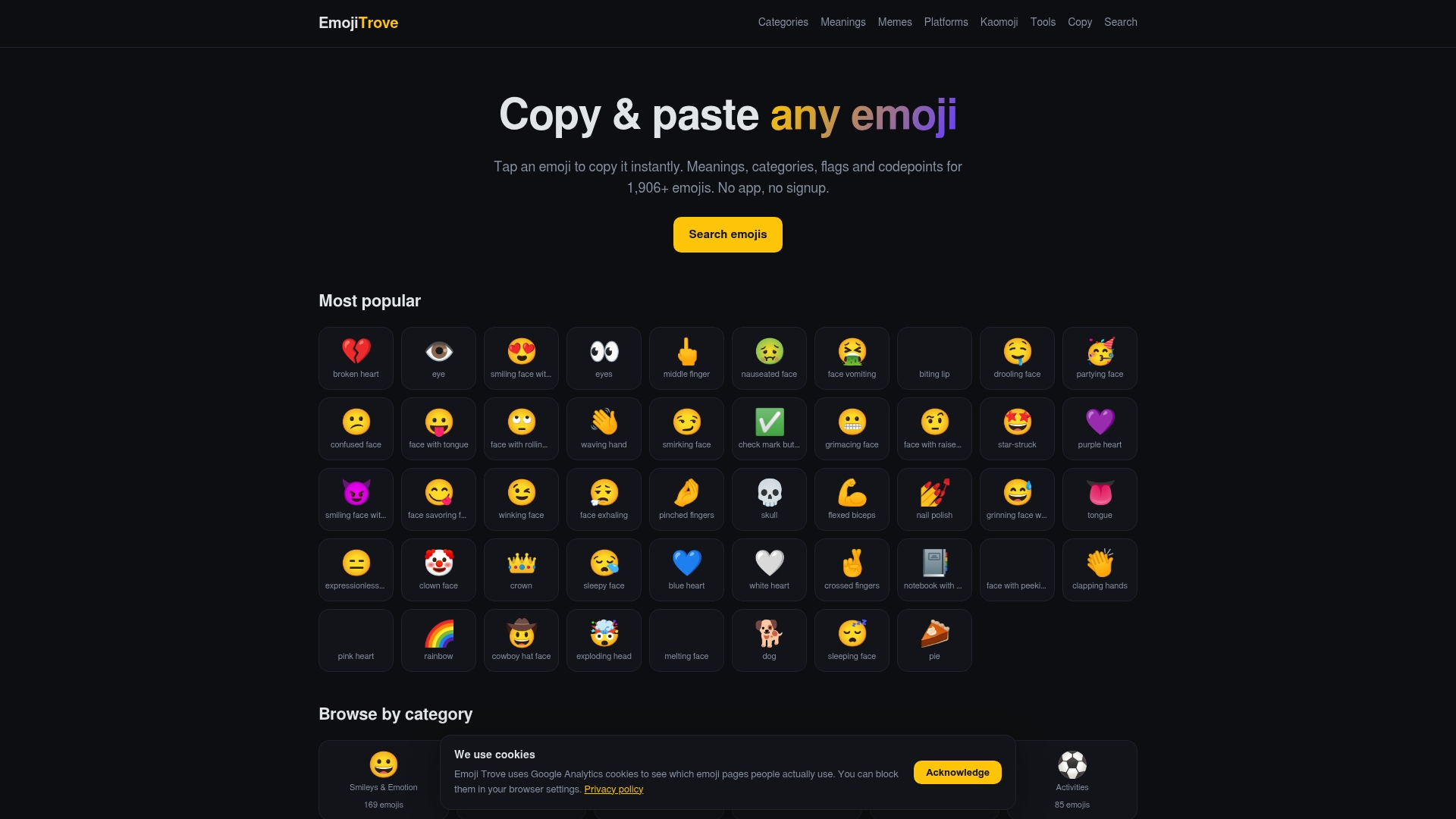
The Emoji Copy and Paste page groups arrows and every other emoji by theme so you skip the scrolling entirely, and the Emoji Tools page adds bulk sets and a symbol translator for anyone building out longer captions or repeated content. Each entry comes with a short meaning attached, so you’re not guessing whether ↩️ or ⤴️ fits the sentence you’re writing. Head to the tools page now and copy your first arrow set in under a minute.
Sources
Code points and category groupings draw from the Unicode Consortium and the arrow symbol guide at Unicode FYI. Shortcode and rendering behavior comes from the markdown arrow symbols guide, with copy-tool behavior confirmed via Text Toolbox’s arrow generator.
FAQ
How do I type arrows like ↑ ↓ → ← on a keyboard?
On Windows, open Character Map or use Alt codes; on macOS, press Control, Command, and Space to open the Character Viewer and search “arrow.” On mobile, check your emoji keyboard’s symbols tab.
What does ➡️ mean?
➡️ is the bold right-pointing arrow emoji, commonly used to signal “next,” direct attention to something below or beside it, or point toward a link or swipe action.
What does the 🤞 emoji mean?
🤞 shows crossed fingers, typically used to express hope for good luck or a wish that something goes well, separate from arrow symbols but often paired with them in encouraging messages.
What does the → symbol mean?
The → symbol points to the right and generally means “leads to,” “next,” or “results in,” depending on context, whether that’s a recipe step, a math relationship, or a simple direction cue.
Should I use a text arrow or an emoji arrow?
Use plain Unicode text arrows for documents, PDFs, and printed material where consistent font alignment matters, and save colorful emoji arrows for texting, social captions, and messaging apps.